
How to Upload HTML Files to Hestia File Manager
Overview
This guide shows you how to upload and edit HTML files for your domain. You'll be able to customize your domain's landing page by replacing the default index.html with your own HTML files.
Prerequisites
Before you begin, make sure you have:
An active Inframail plan with hosting enabled
A domain added to your account with nameservers configured
Your hosting password (available from your dashboard or host CSV)
Your HTML files ready to upload (must include an index.html file)
Step 1: Access File Manager
From your Inframail dashboard, click on Access Emails and access your control panel. Once logged in, click the File Manager button in the top navigation bar.

If you forgot your hosting password, you can reset it from your Inframail dashboard before accessing the control panel.
Step 2: Navigate to Your Domain Directory
In the File Manager, follow this path to reach your domain's web directory:
Click on the web folder
Open your domain folder (e.g., yourdomain.com)
Open the public_html directory
This is where your website files need to be located. Any index.html file here will be displayed when someone visits your domain.
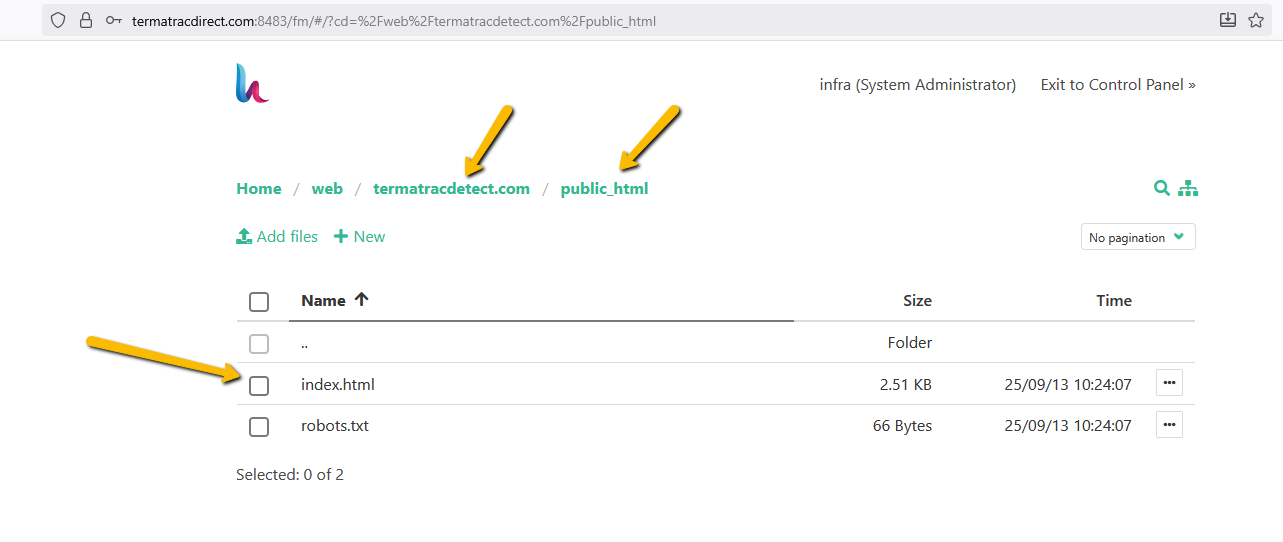
Step 3: Upload or Edit Your HTML Files
You have two options for adding your custom HTML:
Option A: Edit the Existing File
Click on the index.html file in the public_html directory
Select Edit from the menu
Replace the content with your own HTML code
Save the file
Option B: Upload New Files
Click the Upload button in the File Manager toolbar
Drag and drop your HTML files or click to browse
Make sure your main file is named index.html
Wait for the upload to complete
Your main landing page file must be named index.html and placed in the root of the public_html directory. Otherwise, visitors won't see your custom page.
Step 4: Verify Your Changes
After uploading or editing your files:
Check that file permissions are correct
Wait a few minutes for changes to propagate
Visit your domain in a browser to confirm your custom HTML is displaying
Your custom HTML page is now live! Visitors to your domain will see your uploaded content.
Troubleshooting
Site Not Loading After Upload
If your custom page isn't appearing:
Verify that index.html is in the public_html root directory (not in a subfolder)
Check file permissions
Wait 5-10 minutes for DNS propagation
Clear your browser cache and try again
Related Resources
How to access your email accounts through webmail - Learn how to access your control panel
Understanding the difference between normal redirects and phantom redirects - Alternative to hosting custom HTML